Read the game first: the data centre screen and the performance display
Apex gives you two diagnostic tools that most players click straight past. Used properly, they tell you which kind of lag you have before you change a single setting.
The data centre selection screen
On the title screen, before you enter the lobby, Apex offers a data centre selection screen listing its server locations around the world. Each entry shows two live figures: the ping to that data centre and a packet loss reading. The game normally picks a data centre for you automatically, and automatic selection is usually sensible, but "usually" is doing real work in that sentence. Auto-selection can leave you on a data centre that is not your best option after travelling, after an account or platform change, or simply because conditions shifted since the choice was made.
Open the list deliberately at the start of a session. You are looking for the data centre with the lowest ping and zero or near-zero loss. A slightly higher ping with no loss plays better than the absolute lowest ping with loss showing. If your usual data centre shows an unusually bad reading one evening, that is real information: conditions there are poor tonight, and picking the next-nearest centre is a legitimate, reversible experiment. Note the figures down, they are your baseline for everything that follows.
The performance display and its red icons
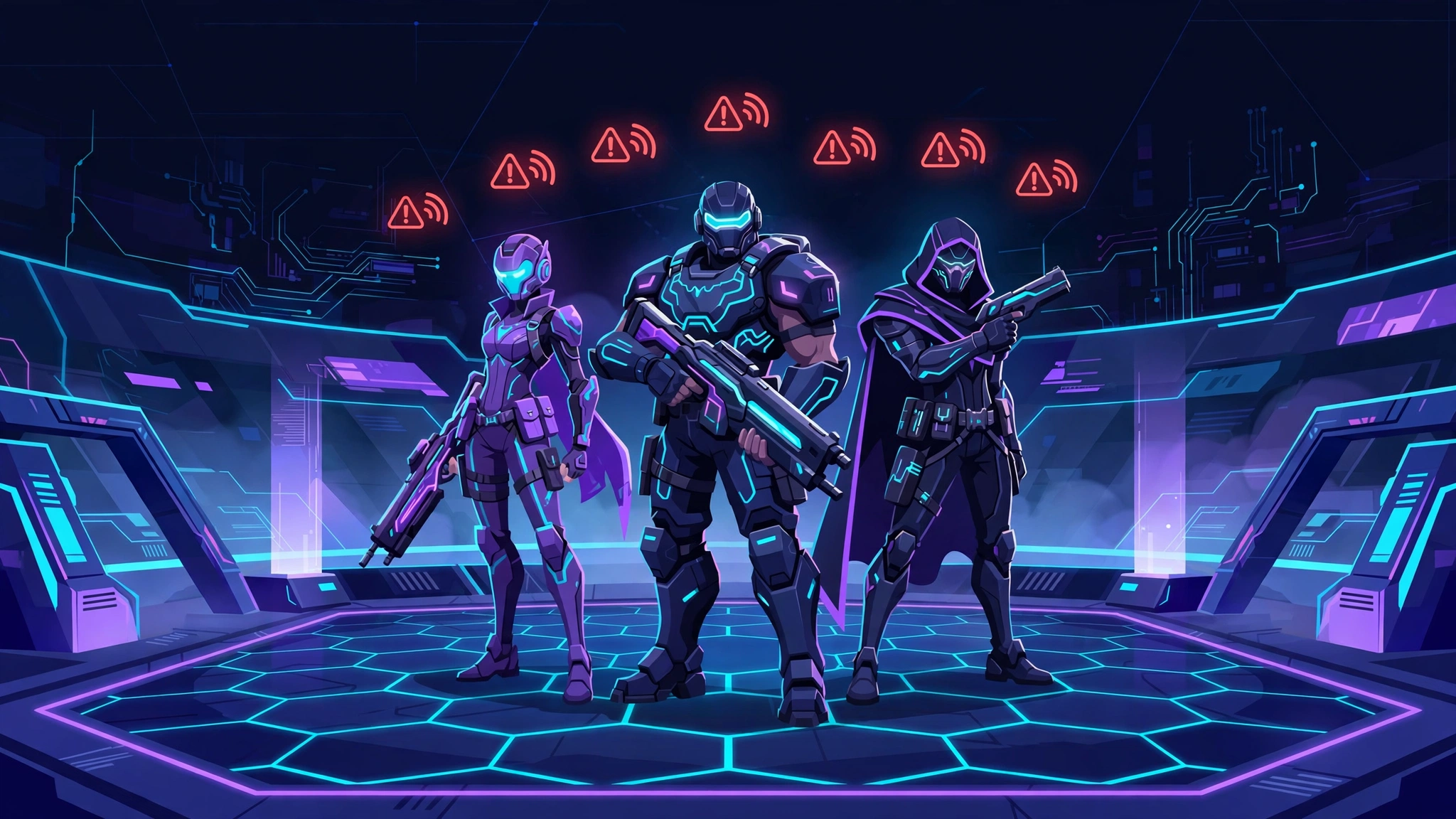
Apex also has an optional in-game performance display that overlays your frame rate, ping and data in/out while you play. More valuable still are the small red network icons that appear in the corner of the screen when something goes wrong. Apex uses several symbols, and in general terms they indicate different faults:
- Packet loss, data travelling between you and the server is going missing in one or both directions. Expect stutter, delayed pickups and hits that fail to register.
- Congestion, the connection is struggling to keep up with the flow of data, typically under load. Expect rubber-banding and inconsistent movement during busy fights.
- Prediction error, the game predicted where players would be, the server disagreed, and positions had to be corrected. Expect enemies and teammates visibly snapping or sliding.
- Latency variation (jitter), your ping is unstable rather than high: swinging values that make timing feel inconsistent from second to second.
The practical value of these icons is direction. A loss icon sends you to a different fix than a high ping number does, and a prediction error icon in a full late-game fight tells a different story from the same icon appearing while you loot an empty building. Watch when the icons appear, not just that they appear, the pattern is the diagnosis.
Steady lag, spikes and loss are three different problems
Players say "lag" for everything, but Apex's three connection problems behave differently and respond to different fixes. Steady high ping means every action is equally delayed all match long, usually distance or data centre choice. Ping spikes mean the connection is fine until it suddenly is not: a fight starts, and for two seconds nothing registers. Packet loss can occur at any ping value and feels like the game dropping pieces of reality, shots missing that should have hit, doors and loot interacting late.
If the icons and readings point to loss rather than latency, stop working on ping entirely. Loss has its own causes, Wi-Fi interference, a struggling router, a congested route, a faulty cable, and its own methodical fix order, which we cover in full in our guide to how to fix packet loss while gaming. If your problem is specifically that things are fine until they suddenly are not, the spike patterns in our guide to why ping keeps spiking in games will help you match your symptom to a cause. The rest of this guide assumes you have identified which problem you actually have.
The 20 Hz question, answered honestly
Any honest Apex connection guide has to address the number every Apex player eventually hears: Apex's multiplayer servers are widely reported to update at 20 ticks per second, 20 Hz, which is low compared with several other competitive shooters. Here is what that actually means, and what it does not.
A server's tick rate is how often per second it recalculates the game world and sends updates to players. At 20 Hz, the world is updated every 50 milliseconds. The practical effects players attribute to it are real: being hit just after sliding behind cover, trades where you and an enemy kill each other, and fights that feel like the server saw a slightly older version of events than you did. That "behind cover" feeling is not your imagination, and it is not your router's fault.
Three honesty points follow. First, you cannot fix it. No setting, cable, DNS change or booster alters how often the server updates; the tick rate is the same for all sixty players in the match. Second, it does not explain your spikes or loss. A 20 Hz server adds a fixed, shared layer of delay, it does not make your personal connection drop packets at 7 p.m. and behave at midnight. If your icons show loss, or your ping swings wildly, that is your connection or your data centre, and it is fixable. Third, it is a reason to judge Apex by Apex's standards. Some delay in Apex is structural. Chasing a flawless, other-game feel in Apex leads players to "fix" things that were never broken.
Why Apex spikes: lobby-side causes and home-side causes
Signs the problem is on the Apex side
Some Apex instability belongs to the match, not to you. A full lobby in its final rings concentrates twenty squads of movement and abilities into a small area, and both the server and the connection are working hardest exactly when fights peak, which is why so many players report that Apex "only lags in fights". Data centres also have bad evenings: a centre under strain can deliver inconsistent matches to thousands of players at once, then behave the next day. The tell-tale signs of a server-side or lobby-side problem are that it varies match to match on the same data centre, other players in the lobby mention it too, and your other games and tests are completely clean. Your main tools here are choosing a different data centre for the session and accepting that some evenings in some regions are simply poor.
Signs the problem is on your side
Home-side and route-side problems follow you rather than the lobby. If the icons appear in every match, on every data centre, and similar symptoms show in other games, the cause is local or on the path. The usual suspects: Wi-Fi that degrades when the house gets busy, an upload somewhere in the home saturating the connection (cloud backups and game downloads are the classic Apex-session killers, because fights spike your sensitivity to loss at the exact moment the upload competes), an ageing router, and peak-hour congestion on your provider's route to the data centre. Distance plays a role too, if work or friends have you playing on a far data centre, spikes hurt more, because a longer route has more places to stumble.
The fixes, in the order to try them
- Choose your data centre deliberately, every session. Open the selection screen, compare ping and loss figures, and pick the best combination rather than trusting the default. If your usual centre reads badly tonight, move to the next-nearest and compare in a real match.
- Turn on the performance display for a few matches. Play with the readings visible and note which icons appear and when. You are fixing a named problem from this point on, not "lag" in general.
- Test on a wired connection. One evening on Ethernet separates Wi-Fi from everything else. If the icons vanish, you have found your cause and can work on the wireless setup or stay wired.
- Clear competing traffic during play. Pause downloads, uploads and streams elsewhere in the home, then retest the same data centre. Spikes that track household activity are a capacity problem, not an Apex problem.
- If the icons show loss, work the packet-loss method. Router restart, cable checks, wired testing and route testing in the right order, set out step by step in our packet loss guide.
- If the ping itself swings, work the spike method. Match your pattern, fights only, evenings only, one data centre only, against the causes in our ping spikes guide rather than applying fixes at random.
- Retest across several matches before judging. Apex matches vary naturally. One good match proves nothing; a clean evening on the same settings is a result.
Where a routing tool fits for Apex
If your home network tests clean, wired, no loss at the router, other causes ruled out, yet one data centre consistently plays worse than its distance says it should, the remaining suspect is the route your provider takes to it. That is the specific problem a game routing tool such as GearUP Booster is built for: it steers your game traffic through its own network instead of your provider's default path, you select the game and a server or node, start the boost, and compare the same data centre with and without it. GearUP's own support material names Apex Legends among the titles its ASUS router plugin can boost, and console players should note there is no GearUP app on the console itself, console boosting works through a PC sharing the connection, that plugin on a supported ASUS router, or GearUP's HYPEREV hardware router.
The limits matter as much as the promise. A booster cannot change the 20 Hz tick, cannot repair a data centre having a bad night, and cannot fix loss that starts on your own Wi-Fi. Judge it the Apex way: same data centre, same time of day, performance display on, across several matches, boost off versus boost on. Consistent improvement in the readings and the icons is evidence; one good game is not. The same comparison discipline applies to any fast battle royale, our Fortnite lag and packet loss guide uses the identical method, because the symptoms rhyme even though the games differ.
Common mistakes Apex players make
- Blaming the tick rate for everything. The tick rate is real, shared and fixed. Using it as an explanation for personal packet loss means never fixing the loss.
- Changing data centres mid-troubleshooting. Every change resets your comparison. Pick one centre, run your tests, then experiment with centres as its own separate test.
- Chasing the lowest ping number while ignoring loss. A 25 ms connection dropping packets plays worse than a stable 55 ms one. The data centre screen shows both figures for a reason.
- Judging a fix by one match. Lobby quality varies enormously. Three matches minimum, ideally a full session, before any verdict.
- Testing at midday for an evening problem. Data centre strain and household congestion are peak-hour phenomena. Test when you actually play.
Frequently asked questions
Why does Apex lag when my other games feel fine?+
Each game is a different journey to different servers. Your route to Apex's data centres may be poor while your route elsewhere is clean, and Apex's busy lobbies and 20 Hz updates also expose connection flaws that slower-paced games hide. Use the data centre screen and performance display to see what Apex itself reports.
What do the red icons in Apex mean?+
In general terms: packet loss means data is going missing between you and the server; congestion means the connection is struggling under load; prediction error means the game predicted movement that the server then corrected; and the latency-variation symbol means your ping is unstable rather than high. Each one points at a different fix, which is why reading them matters.
Can I fix Apex's 20 Hz tick rate?+
No. The tick rate is set by the game's servers and is identical for every player in the match. Nothing on your side, settings, hardware or boosters, changes it. What you can fix is everything on top of it: your ping, your loss and your stability, which is where most of the bad feel in a typical match actually comes from.
Should I always pick the lowest-ping data centre?+
Pick the best combination of ping and packet loss. A data centre showing slightly higher ping but zero loss will usually play better than the lowest-ping option showing loss. Recheck the list each session, because the right answer changes with conditions.
Will a booster stop my Apex ping spikes?+
Only if the spikes are caused by your route to the data centre. If they come from your Wi-Fi, household traffic, or the server side, a booster will not help. Test with the performance display on, same data centre and time of day, across several matches with the boost off and on, and believe the comparison rather than the marketing.
Apex will always carry a layer of delay that belongs to the game itself, and no guide can honestly remove it. Everything above that layer, your data centre choice, your loss, your spikes, your route, is yours, measurable and fixable. Read the game's own displays first, fix the problem they actually name, and your matches will feel as good as Apex allows them to feel.