Step zero: decide how your gaming device connects
Router setup differs slightly depending on whether your PC or console is wired, on Wi-Fi, or a mixture across the household, so settle that first. This guide will not relitigate the choice: our dedicated comparison of Wi-Fi vs Ethernet for gaming lays out the honest trade-offs, including when wireless is genuinely fine. Whichever you chose, come back here, everything below applies either way, because the router is the one piece of equipment every packet crosses regardless.
One working principle governs the whole procedure: change one setting at a time, then test. Routers offer dozens of tempting toggles, and players who change six in an evening learn nothing except that something, somewhere, is different. Each step below ends with a state you can test, same game, same time of day, a few in-game ping readings, before moving on.
Placement: the free fix most people skip
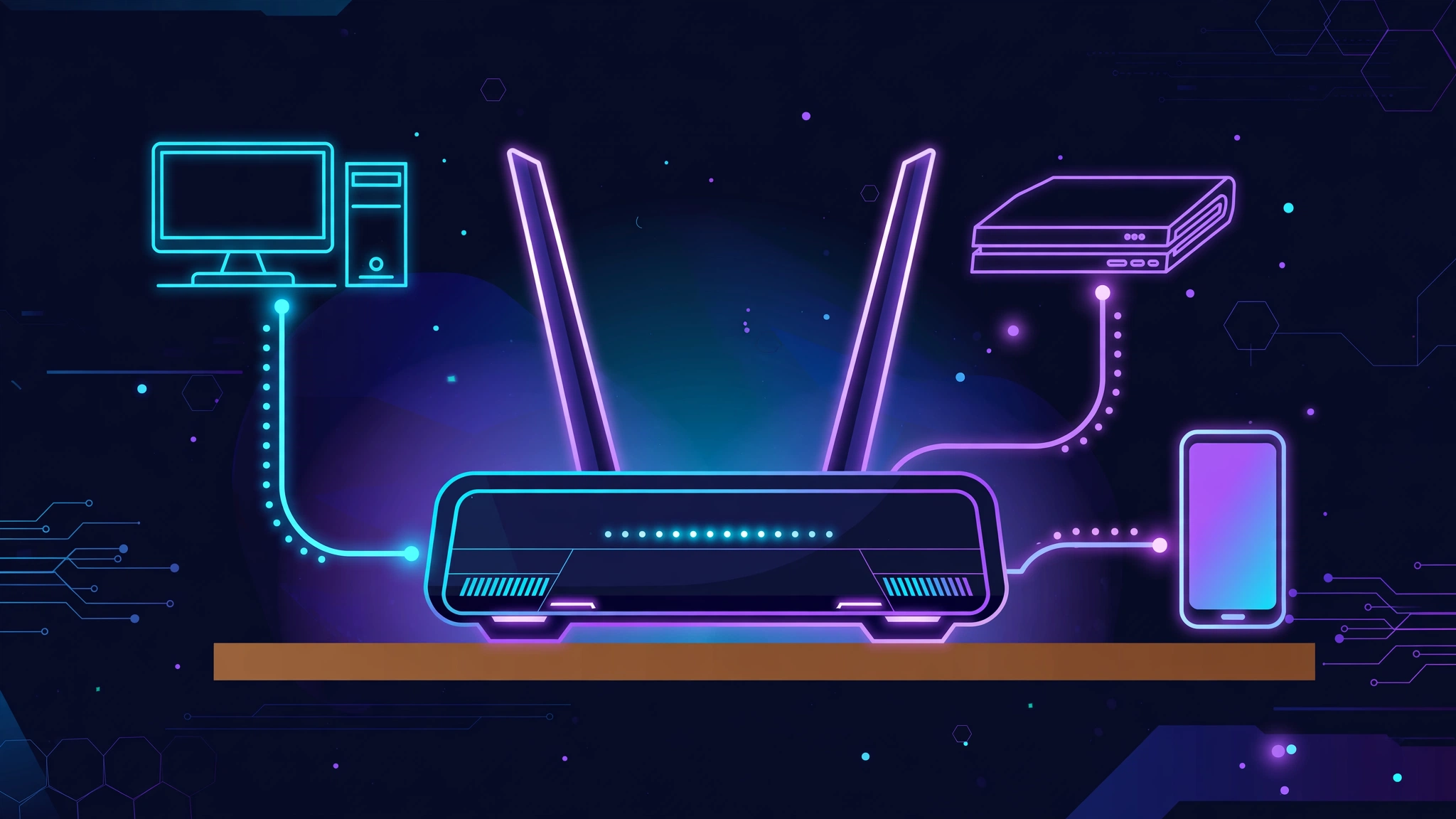
Where the router sits determines the ceiling for everything else, especially for any device on Wi-Fi. Radio signals weaken through walls and floors, and they are absorbed or reflected by metal, water and dense materials, radiators, mirrors, fish tanks, reinforced concrete.
- Central beats convenient. A router in a corner by the front door serves the street better than the back bedroom. Place it as close to the middle of the home, and of the devices that use it, as your cabling allows.
- Elevated beats floor level. On a shelf or wall-mounted beats behind the television on the floor. Signals spread outward and slightly downward from most home routers.
- Open air beats cupboards. Every enclosure, stack of books or neighbouring electronic device costs signal and adds interference. Keep it out from behind the TV.
- Distance to the gaming spot matters most. If one room is where serious play happens, favour that room when choosing between two otherwise equal spots, even if it means a longer cable run from where the internet line enters the house.
Retest after moving it. Players routinely chase settings for weeks to solve what turns out to be a placement problem with a ten-minute fix.
Firmware and basic housekeeping
Routers are small computers running software that ships with faults and ages badly. Keeping that software current is unglamorous and genuinely effective.
- Update the firmware. Open the router's admin page or companion app, the address and default details are printed on the router's label, and look for the firmware or system update section. Many routers can check and update themselves; enable automatic updates if yours offers them. Updates fix known performance and stability faults, not just security holes.
- Set your own admin password. The default password is printed on the label and shared by every unit of that model. Changing it takes a minute and is basic hygiene for the device that guards your whole network.
- Note your current settings before experimenting. A screenshot or a note of what you change, and what it was, makes every later step reversible. Calm troubleshooting later depends on records made now.
Bands: putting the right devices on 2.4 and 5 GHz
Most home routers broadcast two networks, often under one name: 2.4 GHz and 5 GHz. They are different tools.
2.4 GHz travels further and passes through walls better, but it is slower and shares its space with a crowd of other networks and household devices, so it is more prone to interference. 5 GHz offers far more capacity and usually a cleaner, less congested environment, but its range is shorter and walls weaken it quickly. For gaming, the practical rule is simple: a device in the same room as the router, or one room away, usually plays best on 5 GHz; a device at the far end of the house may hold a steadier connection on 2.4 GHz despite the lower ceiling, because a weak 5 GHz signal is worse than a solid 2.4 one.
If your router merges both bands under one network name and steers devices automatically, that steering sometimes parks a gaming device on 2.4 GHz for range reasons. Giving the bands separate names lets you choose deliberately, 5 GHz for the gaming devices near the router, 2.4 GHz for everything far-flung. As for channels within each band: leave the channel selection on automatic unless you live somewhere dense, like a block of flats, where a quick scan showing every neighbour on the same channel justifies picking a quieter one. Channel-fiddling in a quiet street solves a problem you do not have.
QoS and SQM: managing the queue, honestly
The most valuable gaming feature on a modern router is also the least understood, because its job only exists when your connection is busy.
The underlying problem is called bufferbloat. When something saturates your line, a big download, a cloud upload, someone's 4K stream, data queues up inside the router and the modem, waiting its turn. Your game packets join that queue, and your ping spikes even though your headline speeds look enormous. This is why a connection can test at hundreds of megabits and still lag the moment anyone else in the house does anything.
QoS (Quality of Service) tackles this by prioritisation: you tell the router that gaming traffic matters more than bulk traffic, and it serves the game packets first. SQM (Smart Queue Management) is the more sophisticated relative, found under various names and technologies on better routers, which manages the queue itself so it never grows bloated in the first place, keeping latency low even under load. Of the two, SQM where available is usually the more set-and-forget answer; either is vastly better than nothing on a shared line.
Now the honesty. Queue management only helps when the queue is your problem. If you live alone, game on an uncongested line, and your ping is high because the game server is far away, QoS and SQM will do precisely nothing for you, you cannot prioritise your way closer to another continent. They also cannot fix congestion on your provider's network beyond your home. Enable SQM or QoS, then test under realistic conditions: run your normal household traffic while you play and see whether the spikes that used to appear under load have gone. That loaded test, not an idle one, is the only verdict that counts.
Wired ports and cables, in plain terms
For any device you do wire, and console players in particular should note how directly this applies, as our PlayStation connection guide covers from the console side, the physical details are refreshingly simple.
- Use the router's LAN ports. Any of the numbered LAN sockets is fine for a gaming device. Modern routers offer gigabit ports; the speed figure that matters for gaming is not throughput, games use very little, but a clean, full-quality link.
- Cable categories are simpler than the marketing. Cat5e cable handles gigabit speeds comfortably at any length found in a home. Cat6 is the common modern default and equally fine. You do not need exotic categories for gaming; you need an undamaged cable, fully plugged in at both ends.
- Damaged cables cause loss, not slowness. A pinched, kinked or badly terminated cable is a classic hidden cause of packet loss and intermittent drops. If a wired device misbehaves while others are fine, swapping its cable is the cheapest diagnostic in networking, and our guide to fixing packet loss while gaming shows how to confirm loss is really your problem before you go hunting for causes.
Guest networks: giving the smart home its own room
A modern home quietly hosts dozens of connected things, bulbs, plugs, cameras, speakers, a doorbell, each chatting away in small bursts. Individually they are trivial; together they add chatter, airtime competition on Wi-Fi, and occasional badly behaved bursts. Most routers offer a guest network: a separate network, usually isolated from your main one, originally meant for visitors.
Putting the smart-home fleet on the guest network, or simply on the 2.4 GHz band while gaming devices take 5 GHz, tidies things in two ways. It keeps the gaming environment's airtime for gaming, and it isolates devices you did not buy for their security record from the network your computer lives on. Do it once, device by device, and forget about it. What it will not do is transform a bad connection; it removes background noise so your tests and your matches reflect the game, not the doorbell.
Restart habits
Routers degrade over long uptimes: memory fills, tables stale, small faults compound. A restart clears that accumulated state, which is why "turn it off and on again" remains legitimate networking advice. A reasonable habit is to restart the router every few weeks, or immediately when behaviour changes for no obvious reason, connections that were stable for months and suddenly are not. Some routers can schedule an automatic restart in the small hours; if yours offers it, use it. Then test under load and confirm your queue settings survived and are still doing their job.
ISP-supplied router versus your own
The box your provider gives you ranges from perfectly decent to genuinely limiting: older Wi-Fi standards, weak queue management or none, few settings. Using your own router behind it is a well-trodden path, your router connects to the provider's box and runs your home network. Two practical points. First, running two routers can create double NAT, two layers of address translation, which some games object to with strict NAT warnings; many provider boxes offer a bridge or modem mode that passes the connection straight through to your router and removes the second layer, though availability varies by provider. Second, none of this changes your line itself. If your problems are distance, provider congestion or a fault on the line, a better router polishes the part inside your walls and no more. Buy for queue management and Wi-Fi quality, not for promises printed on the box, which brings us to the myths.
Settings to leave alone, and gaming-router myths
| Worth your time | Leave alone / treat with suspicion |
|---|---|
| Placement, firmware updates, band choice per device | "Gaming mode" toggles with no explanation of what they change, often just a QoS preset with a louder name; judge by loaded tests, not labels |
| SQM or QoS, verified under household load | Ever-higher transmit power settings, a shouting router creates more interference, including for your own devices trying to answer |
| Moving smart-home devices to the guest network | Antenna count as a ping feature, more antennas can help Wi-Fi capacity and coverage; they do nothing for the distance or routing that determine ping |
| Swapping a suspect cable; scheduled restarts | Exotic DNS changes sold as ping fixes, a different DNS can change how quickly a name is looked up when you first connect; it does not shorten the route your game traffic then travels |
Frequently asked questions
Should I game on 2.4 GHz or 5 GHz?+
On 5 GHz if your gaming device is in the same room as the router or one room away, it offers more capacity and a cleaner environment. At the far end of a house, a strong 2.4 GHz signal can be steadier than a weak 5 GHz one. Test where you actually play and let the readings decide.
Does QoS actually reduce ping?+
It reduces ping spikes caused by your own line being busy, bufferbloat, by serving game traffic first or managing the queue intelligently. On an idle line, or where the problem is server distance or provider congestion, it changes nothing. Test it under household load; that is the only honest verdict.
How often should I restart my router?+
Every few weeks is a sane habit, and immediately whenever connection behaviour changes without an obvious cause. If your router supports a scheduled overnight restart, that is the easiest way to make it routine.
Is my ISP's router good enough, or do I need a "gaming router"?+
Judge the box by features, not labels: current firmware, a 5 GHz band, and SQM or QoS are what matter. Plenty of provider routers qualify. Plenty of expensive "gaming" models add lights and branding without better queue management. Buy the features, not the adjective.
Will more antennas or a stronger signal give me lower ping?+
No. Antennas and signal strength affect Wi-Fi coverage and capacity between your device and the router. Ping is dominated by the distance to the game server and the route taken to it, things no antenna can change. A stronger signal can fix instability, which is valuable, but that is a different problem.
Worked through in order, placement, firmware, bands, queue management, physical links, a quieter network, sane restarts, your router stops being a suspect and becomes evidence. Every subsequent connection problem gets easier to diagnose, because the one device everything passes through is now known to be set up properly. That, more than any single setting, is what a gaming router setup is for.